
5 KiB
Docker
-
Installing docker https://itsfoss.com/install-docker-arch-linux/
-
Configuration
-
Add user to docker group
sudo usermod -aG docker $USER -
Log out and Log Back In After adding your user to the Docker group, you need to either log out and log back in or reboot your system. This step is necessary for the group changes to take effect. An alternative is to use the following command to apply the group change immediately:
newgrp docker -
If again needed a permission then
- Check Docker Daemon Permissions
ls -l /var/run/docker.sockThe output should show that the group is set to docker. If not, you can adjust the permissions with:sudo chown root:docker /var/run/docker.sock
- Check Docker Daemon Permissions
-
-
To list images use
docker images -
To list containers use
docker ps -
To delete container or image forcefully respectively
docker rm -f <container_id>anddocker rmi -f <images_id> -
Issues https://stackoverflow.com/questions/51188657/image-is-being-used-by-stopped-container-error building image:
docker build -t username/first_app:1.0it will produce an output and will produce image starting with sha……
To run the image use:
docker run <image_name/code>Now if we try to run it with port(here in eg port is 8080) then it wont run because by default its not accessible outside container so to expose it we can use port forwarding.
docker run -p 5000:8080 <image_name/code>port 8080 of container is forwarded to port 5000 of outside container. 5000:8080 is mapping
-
For publishing
Now login through the CLI by executing:
-
docker login
Push your Docker Image to the Docker Hub repository with the following command:
docker image push <repository>/<image>:<tag>
Example:
docker image push dhanushkamath/dockerize-node:1.0.0
    You’ve successfully published your first image to the world!

    Running this container on a different computer that has Docker only requires a single command:
docker run dhanushkamath/dockerize-node:1.0.0
- Reducing image size https://devopscube.com/reduce-docker-image-size/
Dockerhub
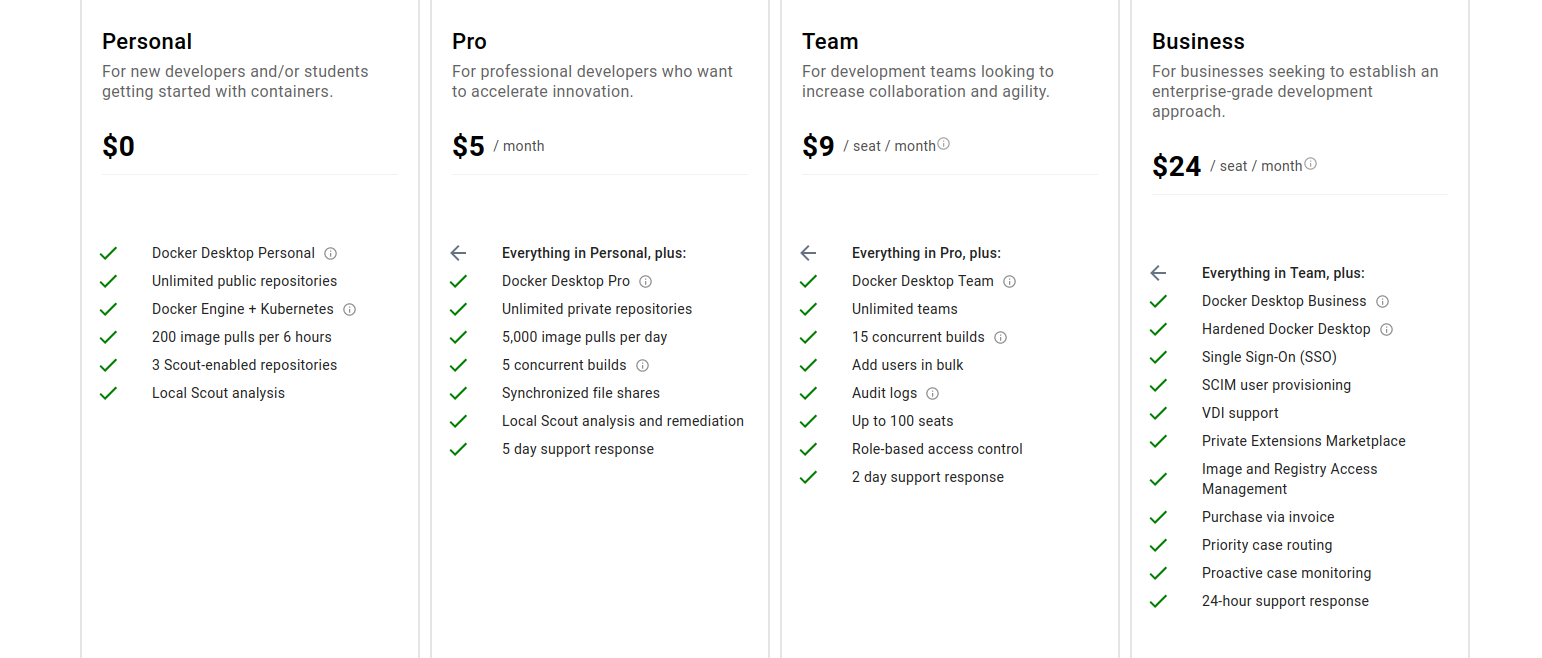
Anonymous and Free Docker Hub users are limited to 100 and 200 container image pull requests per six hours.
 When using docker login the auth token will be stored in
SHOME/.docker/config.json so using different users we can login to different accounts simuntaneously
Pushing images to dockerhub
- When we create image using
docker build -t image_name:tagname .then we get a image of name specified. To push image in dockerhub, image name should be in formatusername/repo:tagname. So instead of creating image again with same format we can create a link/tag to local image withdocker tag local_image_name:tagname username/repo_name:tagname. so for same image we have 2 different names. Now we can just push withdocker image push username/repo_name:tagnameThen finally to download it usedocker pull username/repo_name:tagname
Docker container with multiple node instances
-
Use pm2 for it Structure of files in host
  puppetter_test
  	index.js
  	ecosystem.config.js
  	... (other files)
  ytDownloadSpace
  	app.js
  	... (other files)
  ytdlApi
  	app.js
  	... (other files)
  Dockerfile
Dockerfile
FROM alpine RUN apk add --update nodejs npm bash # App 1 WORKDIR /src/puppetter_test COPY puppetter_test/ ./ RUN npm install # App 2 WORKDIR /src/ytDownloadSpace COPY ytDownloadSpace ./ RUN npm install # App 3 WORKDIR /src/ytdlApi COPY ytdlApi/ ./ RUN npm install RUN npm install -g pm2 #config file WORKDIR /src/puppetter_test EXPOSE 8081 # starting pm2 with --no-daemon flag to keep it running in foreground # instead of background to prevent docker container from stopping CMD pm2 start ecosystem.config.js --no-daemonecosystem.config.jsmodule.exports = { apps: [ { name: 'main', script: 'index.js', watch: true, env: { NODE_ENV: 'production', PORT: 8081 } }, { name: 'ytdownloadspace', script: '../ytDownloadSpace/app.js', watch: true, env: { NODE_ENV: 'production', PORT: 8080 } }, { name: 'ytdlApi', script: '../ytdlApi/app.js', watch: true, env: { NODE_ENV: 'production', PORT: 8083 } } ] }; -
docker import and export images https://stackoverflow.com/questions/24482822/how-to-share-my-docker-image-without-using-the-docker-hub Based on this blog, one could share a docker image without a docker registry by executing:
docker save --output latestversion-1.0.0.tar dockerregistry/latestversion:1.0.0Once this command has been completed, one could copy the image to a server and import it as follows:docker load --input latestversion-1.0.0.tar